
Seat Management
Smart seat management for efficient team CPD
 When you make a group purchase, the person who completes this purchase automatically becomes the Seat Manager. The Seat Manager does not need to enrol in the course.
Users with the Seat Manager role get access to the intuitive dashboard to efficiently track and manage their enrolments, seats, and learner activity.
Assign a Seat Manager Role
The role is automatically assigned to any user who makes a Group Order purchase, either directly through a Physio Academy checkout or by requesting an invoice for multiple seats. Once the group order purchase or an invoice payment is successfully completed, you will have access to the Admin Dashboard, customised for Seat Managers.
At the moment, it is not possible to assign the role manually or unassign the role.
Seat Manager Permissions
A Seat Manager can do the following when accessing their Admin Dashboard:
Admin Dashboard for Seat Managers
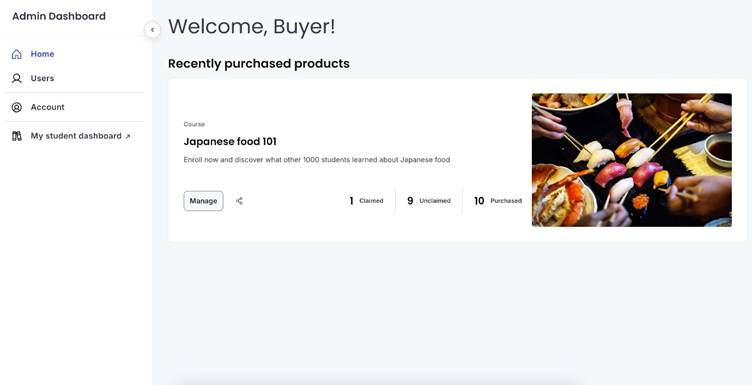
Admin Dashboard for Seat Managers allows seat managers to track and manage their enrolments, seats, and learner activity.
On their dashboard, Seat Managers can view products recently purchased through Group Orders. They can see how many seats were purchased, how many were claimed, and how many are left unclaimed. They can also share the sign-up link. When selecting the Manage button, they will be brought to the seat management table.
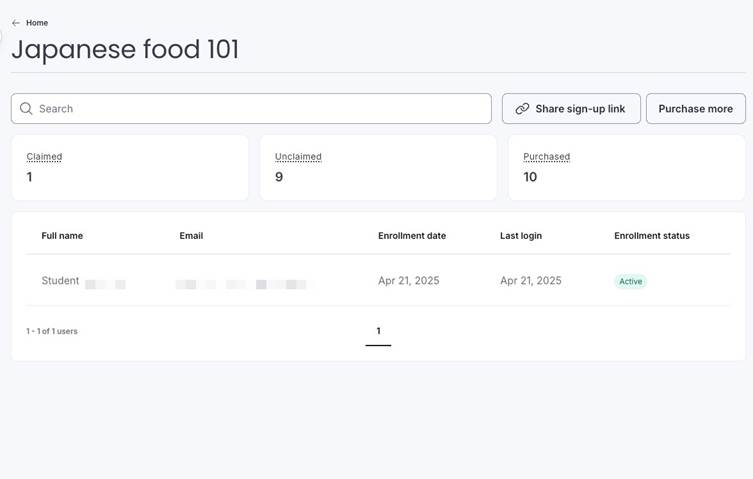
Here, they can see the information of students who enrolled in a product using the sign-up link generated during the Group Order purchase. They can also share the link and purchase more seats for the same product.
Access the Admin Dashboard
When signing in, Seat Managers will automatically be directed to their Dashboard. They can also access their dashboard by:
Manage Seats
Seat Managers can manually manage their purchased seats, like enrolling students or unenrolling them.
Seat Managers can manually enrol students in the products they have purchased seats for. To do that:
The user will be created and enrolled in the selected product, claiming one of the purchased seats.
Manually Unenroll Students
Seat Managers can manually unenroll students from the products they have purchased seats for. To do that:
The student's enrolment status will be changed to Expired, and they will no longer have access to the product.
Note: Their seat cannot be reassigned, and unenrolment does not change the claimed seat amount.
Bulk Enrol Students
Seat Managers can bulk enrol multiple students in the products they have purchased seats for at one time from a CSV or XLSX file. To do that:
Once the import is complete, the users will be created and enrolled in the selected product, claiming the purchased seats.
Important Considerations